Overview
Vizard AI – Official Website, What It Is & How to Use
Vizard AI Official Website
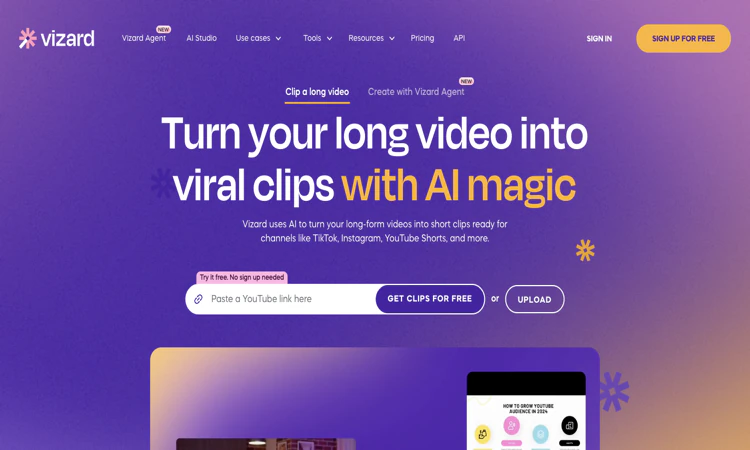
Vizard AI is an AI video clipping and editing service for repurposing longer recordings.
- Official app: https://vizard.ai/
- Creator: Vizard, Corp.
- Price: Freemium; Free, Creator, Business, and custom options
- Login required: A no-sign-up trial entry is advertised; accounts support saved workspaces and subscription features
- Platform: Web
- Main use: Finding short clips in podcasts, webinars, interviews, and other long recordings
- Last checked: 2026-10-22
We are not the official developer of Vizard AI. This page helps users find, understand, and use the product.
What Is Vizard AI?
Vizard AI turns existing recordings into shorter videos for social distribution. Its public homepage starts with a video link or upload, then describes transcription, automatic highlight selection, reframing, editing, and publishing. Vizard AI combines AI clipping with transcript-based editing, so a user can trim footage by editing the associated text rather than working only on a timeline. The website also lists caption translation, brand templates, link sharing, and a shared team workspace. Vizard AI is particularly relevant when the useful material already exists inside an interview, course, or webinar. Its output is a set of proposed clips, which still need contextual and editorial checks. A short segment can be fluent while omitting the qualification that made the original statement accurate. This guide checked public pages and plan information; it did not upload a recording or benchmark the clipping quality.
For a first visit, the useful question is how quickly a small, well-defined task becomes a result you can inspect. This edition follows that first-project route and explains the decisions that should come before a larger commitment.
How to Use Vizard AI
- Open the official Vizard AI website and confirm the domain before starting a project.
- In Vizard AI, use the homepage link field or upload entry. The public page advertises a free trial without sign-up; sign in when the workflow requests a workspace or account feature.
- In Vizard AI, supply a recording you are authorized to process. Clear speech and an identifiable topic make it easier to judge whether the proposed highlights preserve the original meaning.
- In Vizard AI, let the service transcribe the recording and choose Get AI clips when offered. Open the proposed clips and compare their beginnings and endings with the source.
- In Vizard AI, correct transcript errors, adjust captions and framing, then export or use the available sharing and publishing controls. Check resolution and storage limits before relying on the free plan.
Vizard AI: Preparing the Input and Checking the Result
For Vizard AI, prepare an authorized podcast, webinar, interview, or lesson with intelligible speech. The target deliverable is a self-contained social clip with corrected captions and an appropriate vertical crop. Use this as an acceptance condition rather than assuming that every completed draft or preview is ready for its final audience.
Before calling a Vizard AI project complete, check names, sentence boundaries, speaker identity, face framing, and whether the clip makes sense without the full recording. Preserve the original material so a correction can be traced to the source. Keep a copy of the accepted deliverable through the available official workflow, especially when storage or access is limited.
Vizard AI: A First Project That Produces a Useful Result
Begin your Vizard AI evaluation with a short interview excerpt with one clearly explained answer and a known spelling list. Write down the expected result before changing settings: a self-contained social clip with corrected captions and an appropriate vertical crop. This makes the exercise concrete and keeps an impressive preview from replacing a useful outcome.
For the first Vizard AI session, preserve the original input and change only one major setting at a time. Record what improved and what still needs attention. If the result fails, compare it with the original requirement before spending more time on a more elaborate project. A small test is easier to diagnose and explain to another person.
The next Vizard AI decision is whether the workflow is repeatable. Can you find the same entry point again, understand what was saved, and identify the final deliverable? Keep a short note covering the chosen settings, the limitation encountered, and the next action. A successful first project should leave you with an understandable process as well as a result.
Vizard AI Evaluation Checklist
- Vizard AI input: Prepare an authorized podcast, webinar, interview, or lesson with intelligible speech and confirm that it is appropriate to provide to the service.
- Vizard AI expected result: Define a self-contained social clip with corrected captions and an appropriate vertical crop before judging the first preview.
- Quality review: In the Vizard AI result, check names, sentence boundaries, speaker identity, face framing, and whether the clip makes sense without the full recording.
- Vizard AI budget and delivery: Check source minutes processed, storage needs, export quality, and additional editor seats against the actual task.
- Vizard AI handoff: Preserve the source recording, selected timestamps, corrected transcript, caption style, and approved export for the next session or reviewer.
Is Vizard AI Safe?
Vizard AI identifies Vizard, Corp. in its privacy policy. Uploading a recording sends its visual content, speech, and any personal information inside it to an online processing service. A private workspace label is useful product information, but it is not a substitute for reviewing retention terms and deciding whether a particular client call may be uploaded. Vizard AI also offers direct publishing and social connections; review the account authorization separately from the basic editing trial. Use a recording that is already cleared for this purpose.
For Vizard AI, review the current policies before providing sensitive material. This public-page check is not a security audit.
Why Is Vizard AI Popular?
Vizard AI connects to the practical demand for turning a single webinar or podcast into several short posts. Text-based editing and automatic vertical framing give users an easy way to understand its workflow. The homepage contains creator testimonials and usage claims; this guide does not treat those as measured results for a new user. No single independently verified source of a current viral trend was identified during this review.
Vizard AI Not Working?
- Refresh the official page and check whether the issue concerns browsing, account access, processing, or the final deliverable. Try a current browser when a page fails to render correctly.
- For Vizard AI, if a link cannot be imported, check whether the original video is accessible and whether its host is supported. An authorized local upload may be a better test.
- For Vizard AI, if the resulting clip sounds incomplete, move its start or end and review the surrounding transcript. Context loss is an editing issue rather than proof of an outage.
- For Vizard AI, if an older project or export option is missing, check the active workspace, remaining credits, plan resolution, and storage window before repeating the upload.
- If a content blocker appears to interfere, temporarily test the official page with that extension paused. Restore the setting afterward and contact official support if the problem persists.
The Vizard AI public homepage was reachable on 2026-10-22; individual account features and jobs were not tested.
Vizard AI Alternatives
Compare Vizard AI alternatives against the required input and deliverable; capabilities and commercial terms differ.
- Opus Clip — a close alternative for automated highlight selection, reframing, and social clip workflows.
- CapCut — a broader editing option when manual control over the final sequence matters.
- VEED — an adjacent browser-based video editor for captions and content editing.
Frequently Asked Questions
What is the official Vizard AI website?
The official Vizard AI website is https://vizard.ai/. Use the official navigation to reach account, pricing, downloads, and support rather than relying on a similarly named search result.
Is Vizard AI free?
The Vizard AI Free plan lists 60 credits per month, 720p exports, and three-day video storage. The comparison table lists a 60-minute upload-length limit and a 1 GB upload-size limit for that tier. Creator adds higher-quality exports and watermark removal; Business adds a shared workspace and branding features. Vizard AI states that one credit corresponds to one minute of video on its paid-plan cards. Annual discounts and additional editor-seat charges need to be included when comparing the checkout total.
Do I need an account to use Vizard AI?
A no-sign-up trial entry is advertised; accounts support saved workspaces and subscription features.
Who created Vizard AI?
The official public attribution for Vizard AI is Vizard, Corp.
Is Vizard AI still available?
Yes: the official Vizard AI public website was accessible when checked on 2026-10-22. No account creation, customer upload, paid output, or physical order was tested.
What should a first-time user test?
Vizard AI: A small project with a visible pass condition is the most useful first test. Use a short interview excerpt with one clearly explained answer and a known spelling list, then check names, sentence boundaries, speaker identity, face framing, and whether the clip makes sense without the full recording. Expand only after that result meets the original requirement.
What limitations should I check before relying on Vizard AI?
Automatic highlights need context checks; noisy speech can damage transcription, and free projects have resolution, upload, and storage restrictions. A practical Vizard AI evaluation should include one example that exposes the limitation most relevant to your project. Check the current plan or item details again before a subscription, purchase, integration, or external handoff.
Where should I begin with Vizard AI?
Start with Vizard AI and use a short interview excerpt with one clearly explained answer and a known spelling list. Keep the source, acceptance condition, and final decision together so the next step is based on an observed result.
Sources and Review Scope
Official references checked or linked from the reviewed website: Official website; Official pricing; Privacy policy.
Last checked: 2026-10-22. Verify current Vizard AI plan details before a purchase or integration.
Related apps

Shapes Inc
Shapes Inc — friends and AI in one shared thread, same table, no app switching. Shapes do real work.
Shapes Inc Shapes Inc is a collaboration platform that puts AI and your friends in the same thread. Most AI tools isolate the model inside a prompt box that only you can see, but…
Explore App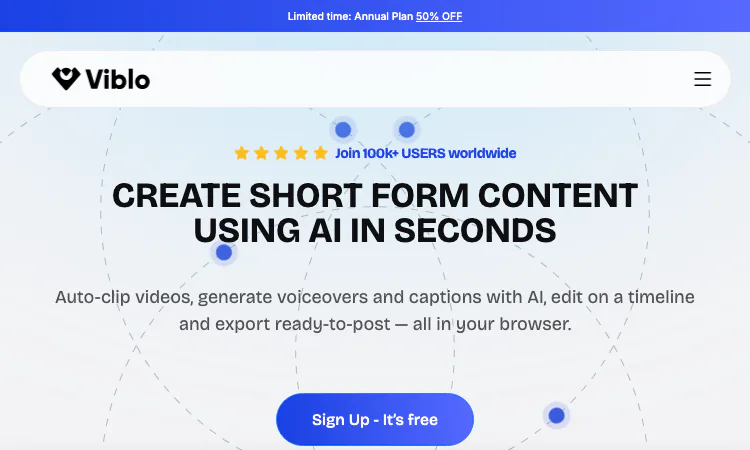
Viblo
Viblo is a browser-based AI video editor for short-form content, pairing auto-clipping, AI voiceovers and captions with a timeline editor.
What Viblo Is Short-form video has a production problem. A creator publishing to TikTok, Instagram Reels, YouTube Shorts, and Facebook needs several clips a week, but the usual…
Explore App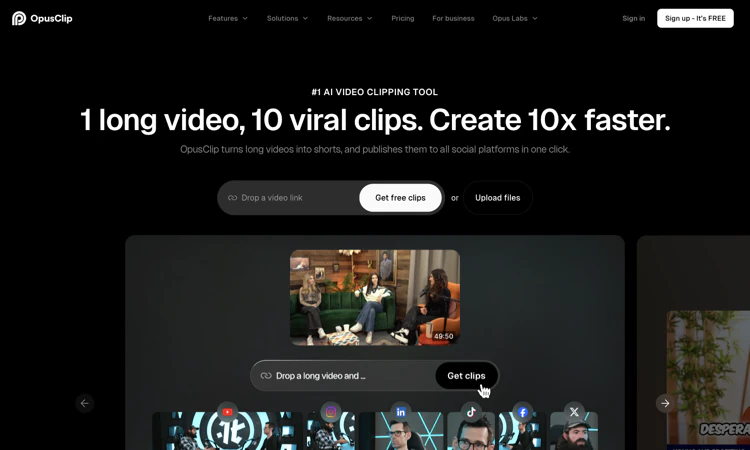
Opus Clip
Opus Clip – Explore its first-project workflow, official site, pricing, account needs, practical limits, safety checks, and troubleshooting.
Opus Clip – Official Website, What It Is & How to Use Opus Clip Official Website Opus Clip is an AI clipping and reframing platform for turning longer videos into short-form…
Explore AppxPomelo
AI search for 60M+ adult videos
xPomelo is a free conversational AI search interface for discovering adult videos across 60M+ results. Users describe what they want in natural language and receive matching…
Explore App
Open When Letters App
Open When Letters App- send heartfelt digital letters loved ones open when they need support.
Open When Letters App Open When Letters App is a dedicated web experience for creating digital “open when” letters. The concept is simple: write a personal note now, connect it…
Explore App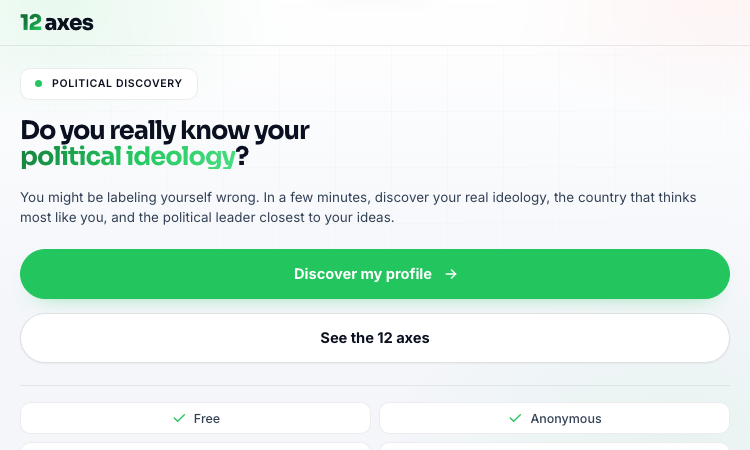
12axes Vercel App
12axes Vercel App - Free twelve-axis political quiz in Portuguese mapping you across ideology axes.
12axes Vercel App 12axes Vercel App is a free, web-based political quiz and ideological self-assessment tool that plots a respondent on twelve distinct political axes rather than…
Explore App